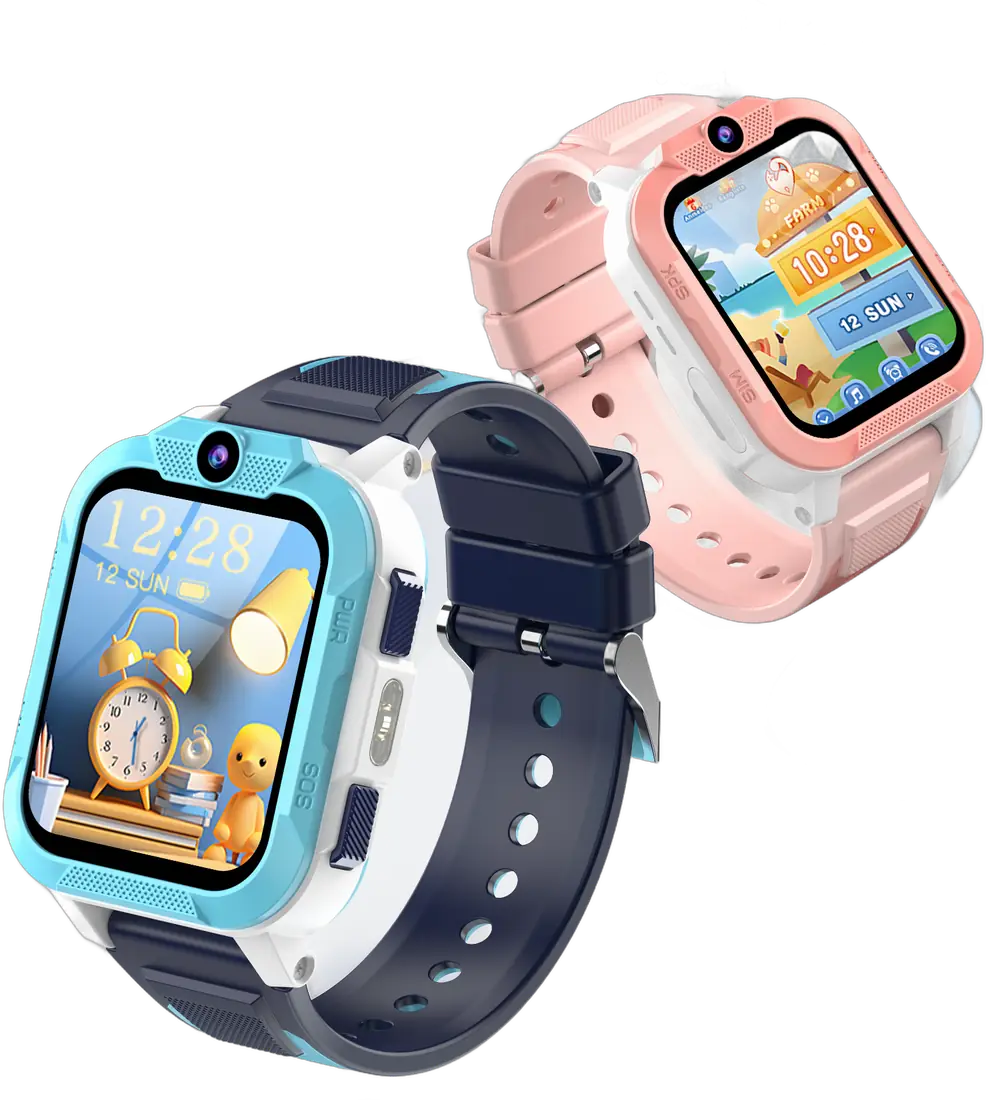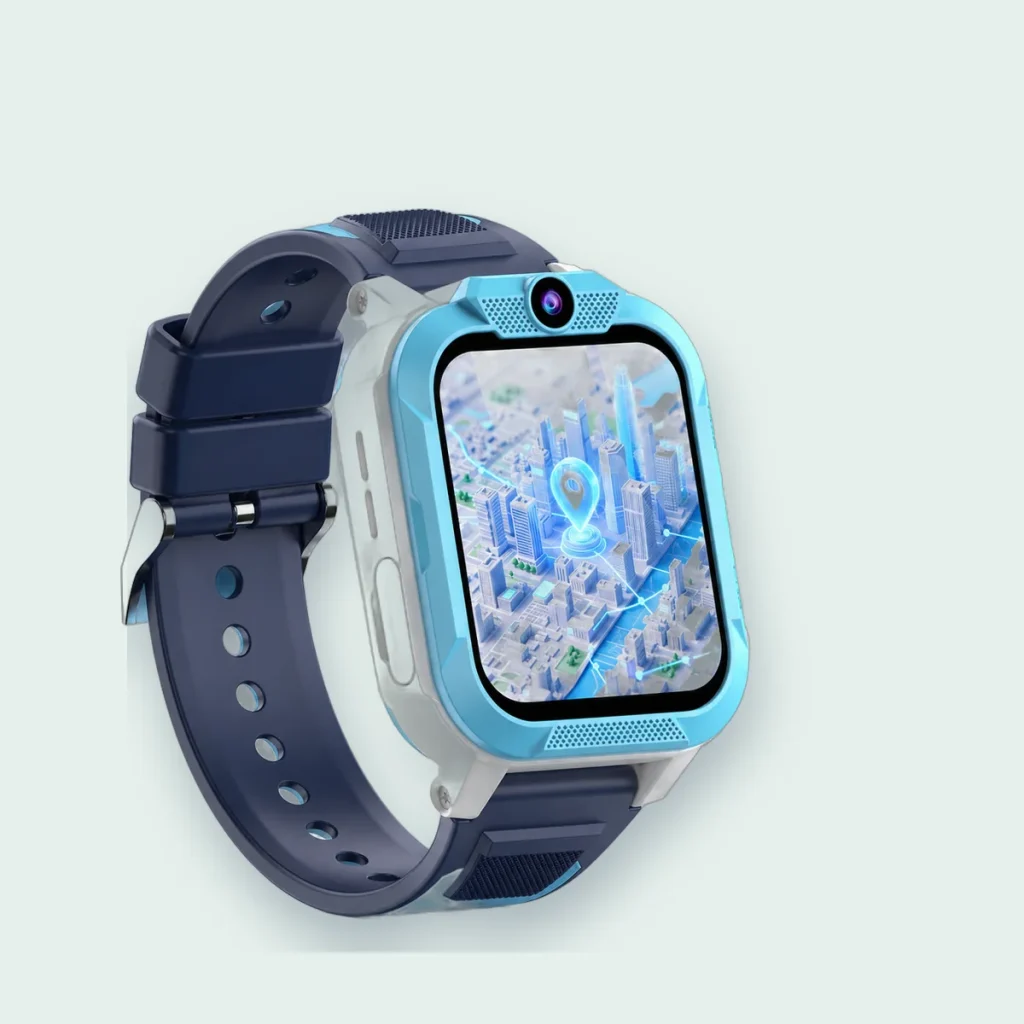
Setting up a kids’ 4G smartwatch is straightforward once the SIM is ready. Set aside fifteen minutes, your phone and the watch, and follow these steps in order. The exact screens depend on the watch and its parent app, so keep the user manual from the box to hand.
Step 1: prepare the SIM
Use a nano SIM with data, calls and texts. Put it in a phone first, make a test call and turn off the SIM PIN lock. If you have not chosen a SIM yet, read how to choose a SIM card for a kids’ smartwatch.
Step 2: insert the SIM and charge
With the watch switched off, insert the SIM as shown in the manual, then charge the watch fully with the cable from the box. A full first charge avoids confusing results during setup.
Step 3: switch on and check the signal
Switch the watch on and wait a minute or two. You should see the mobile signal and 4G indicator on the screen. No signal usually means the SIM is locked, not yet activated or out of credit.
Step 4: install the parent app and pair
Install the parent app named in the user manual on your iPhone or Android phone, create your account and pair the watch as the manual shows. Once paired, the watch appears in the app with its battery level and location.
Step 5: add contacts
Add the people your child can call and who can call them: parents, grandparents, a trusted neighbour. Keep the list short. On the Blackview Z40 Pro, only approved contacts can get through, so calls from unknown numbers are blocked.
Step 6: choose SOS contacts
Pick who is alerted when the SOS button is pressed. Choose people who will reliably answer, and explain to your child when SOS is for.
Step 7: set safe zones and quiet hours
- Safe zones for home and school, large enough to cover the whole site.
- Class-time quiet hours that match the school timetable.
- Location update frequency: more frequent updates are fresher but use more battery.
Step 8: test everything together
- Call the watch from your phone, then call your phone from the watch.
- Send a voice message both ways.
- Press SOS and check the alert arrives with the location.
- Go for a short walk and watch the location update in the app.
Next, run through our safety settings to check on day one. Stuck on a step? Our team can help.
This guide is general information for UK parents. Features and network details can change, so check the latest information from your mobile network and your child's school.