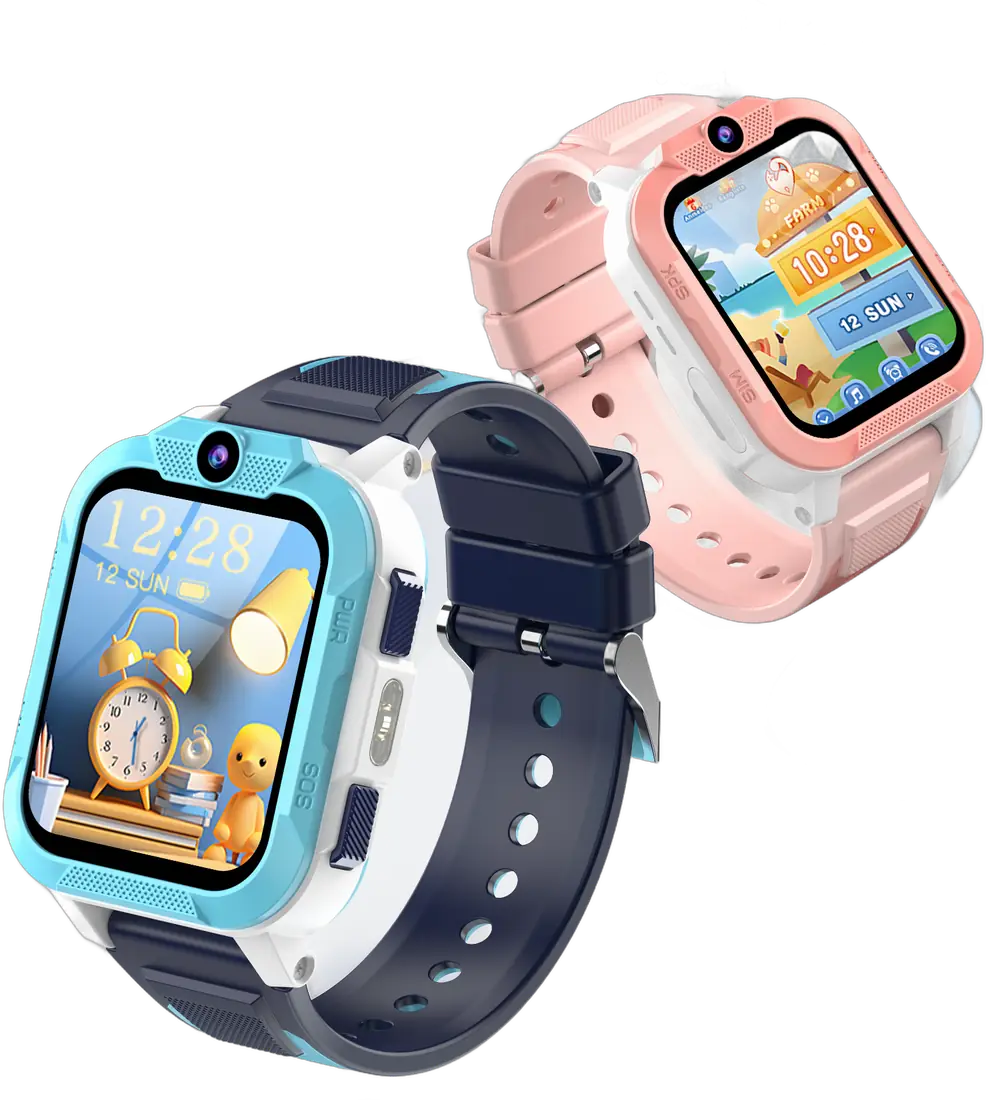
If your child’s smartwatch will not make or receive calls, start by identifying which part has stopped working. A failed voice call, a video call that will not connect and an old location in the app are different symptoms. This checklist helps you describe the problem clearly before contacting support.
First, make the test safe and repeatable
Keep the watch and the parent’s phone with you. Charge both devices and choose a place where you normally have mobile reception. Use an ordinary call to a saved family contact. Do not use an emergency service number to test the watch.
Write down whether the watch can call out, receive a call, or do neither. Note the time, the location and any message on the screen. If the problem happens only at school, compare the timing with the quiet hours you have configured.
Check the SIM and mobile service
- Ask your operator whether the SIM is active and its allowance or balance supports the calls you are trying to make.
- Confirm compatibility with your watch model. A SIM fitting into the slot does not establish network compatibility.
- Follow the watch manual for inserting or removing the SIM. Avoid repeatedly moving it while the device is running.
- If your operator recommends testing the SIM in a phone, note whether ordinary incoming and outgoing calls work there.
Our UK SIM card guide explains the checks to make before choosing a plan. We do not guarantee that every operator or tariff will work.
If outgoing calls work but incoming calls do not
Check the approved contact list in the parent app and compare the saved number with the number actually calling. Review any unknown-caller restrictions and quiet-hour settings available on your model. Follow the supplied instructions rather than turning off every restriction at once.
Make one change, then repeat the same test. If you change the SIM, contacts and quiet hours together, it becomes difficult to tell which setting caused the problem.
If voice calls work but video calls do not
Treat this as a separate test. Check mobile data with the operator and review the app permissions requested for video calling on the parent’s phone. Record whether the call fails on the watch, on the phone or on both. A successful voice call alone does not verify video calling or location updates.
Before resetting or replacing the watch
Use the setup guide to check the initial pairing steps. Avoid a factory reset until you understand how to restore the pairing and contacts. Keep your model name, operator, error message and test results ready for support. Do not send passwords or publish your child’s phone number.
Choosing a watch before purchase
If you are comparing devices rather than troubleshooting one you own, check the Blackview Z40 Pro product page and confirm SIM requirements before ordering. A new watch is not automatically the answer to an operator or settings problem.
Questions parents ask
Does a location shown in the app prove calling works?
No. Test the ordinary call separately and check when the location was last updated.
Should I remove all caller restrictions?
Start with a known, approved family contact and the model instructions. Keep changes limited so you can identify the cause.
This guide is general information for UK parents. Features and network details can change, so check the latest information from your mobile network and your child's school.